Thursday, 18 July 2013
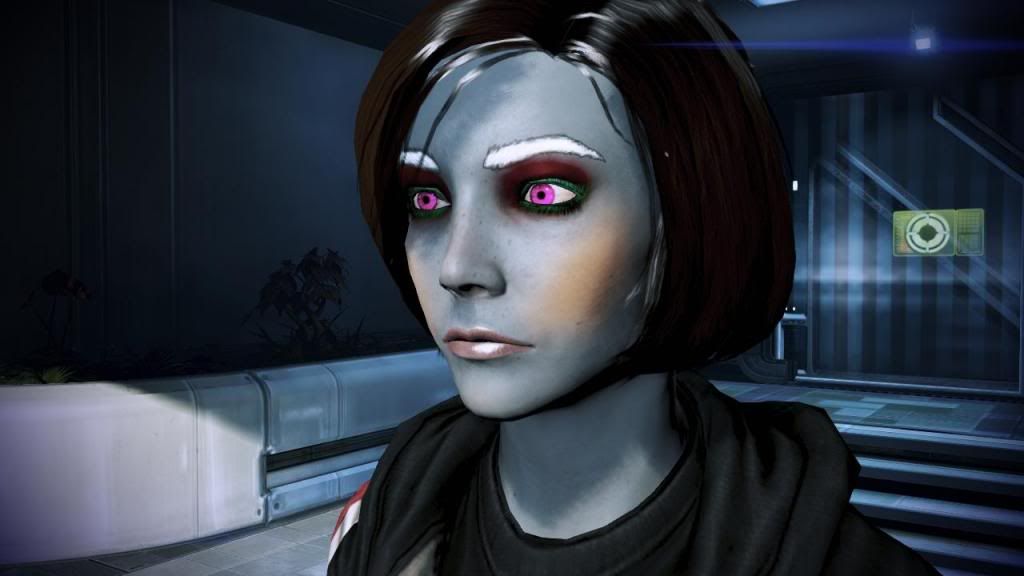
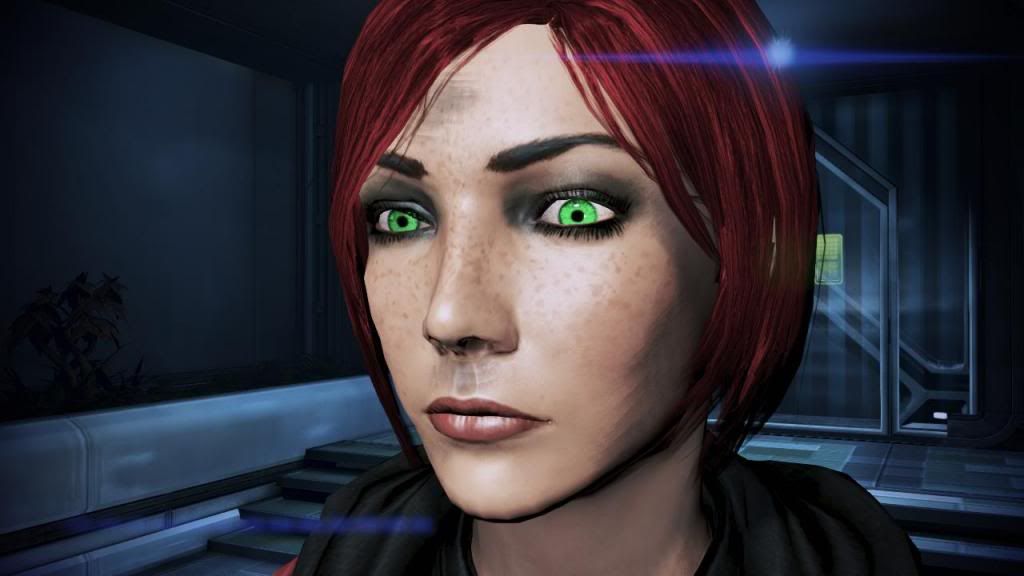
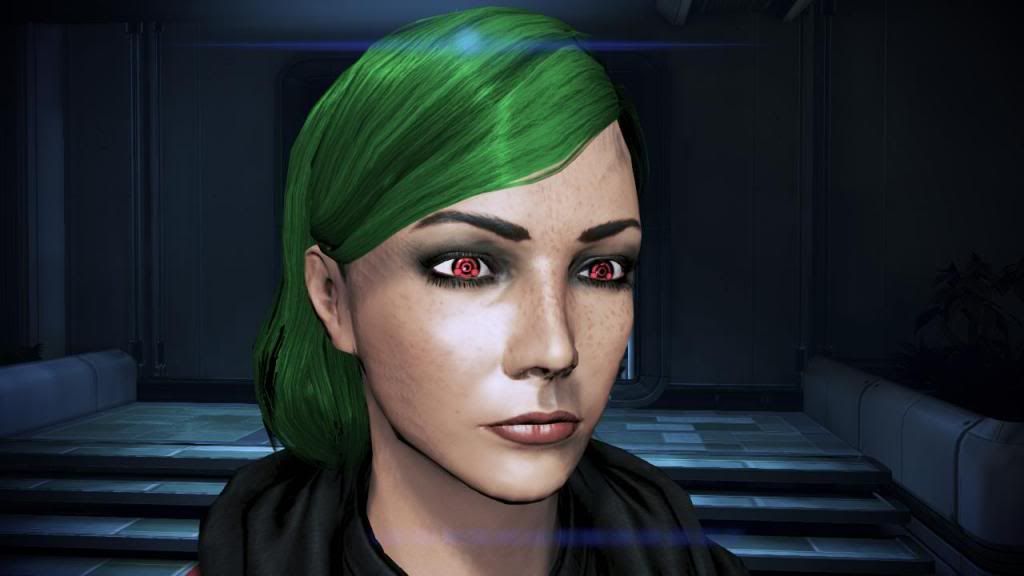
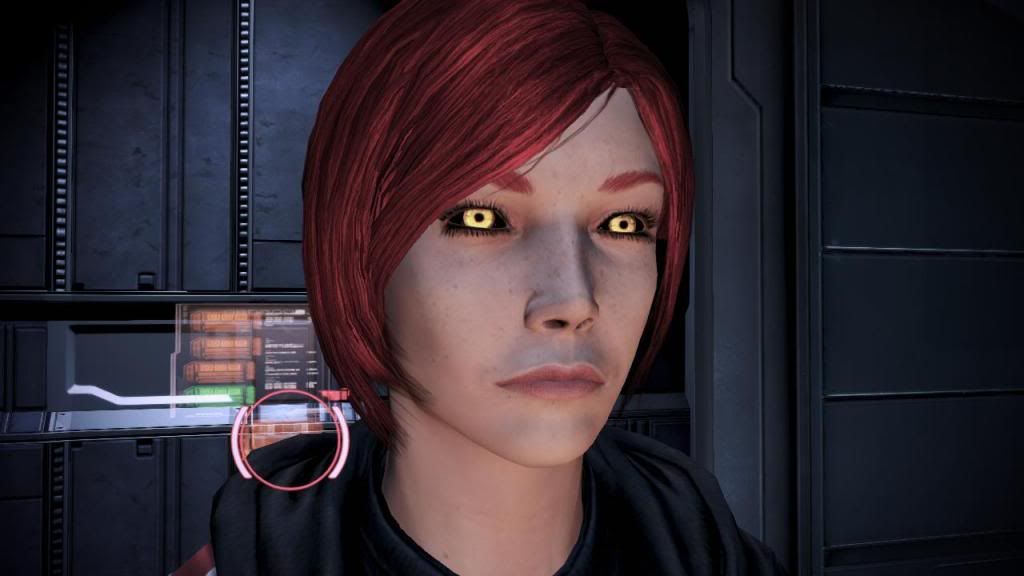
A few colouring examples with everything mixed together
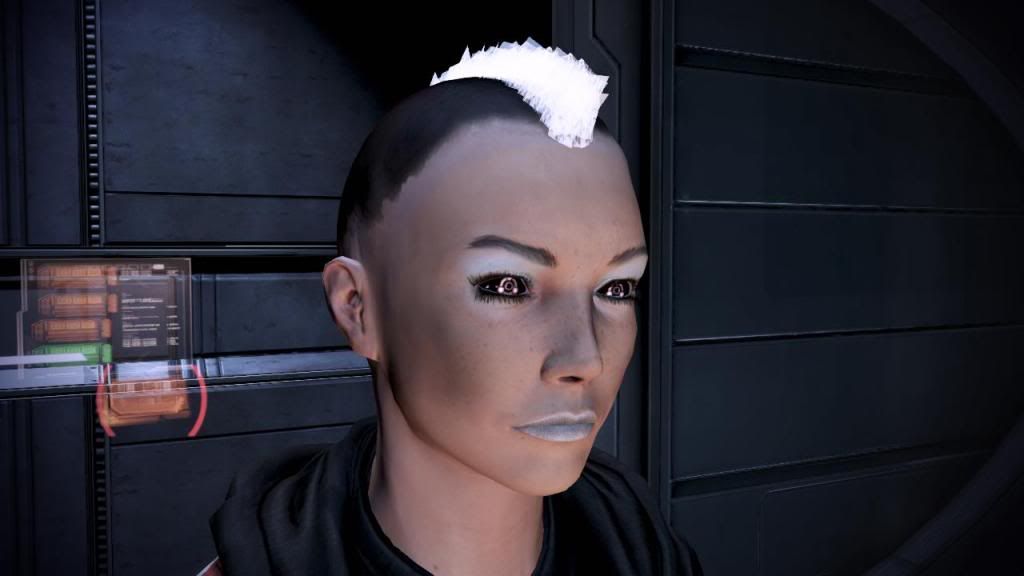
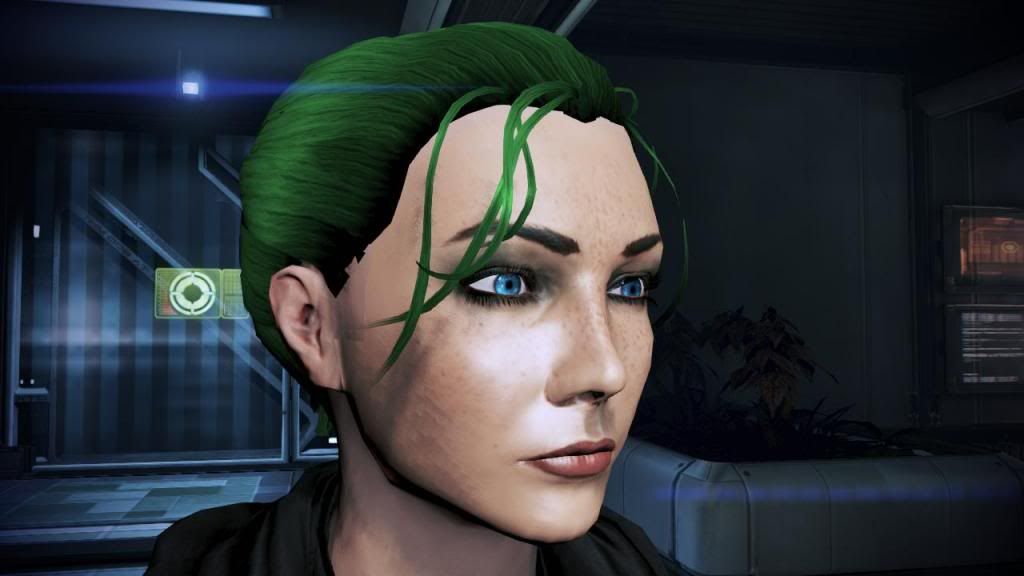
Gothic Shepard:
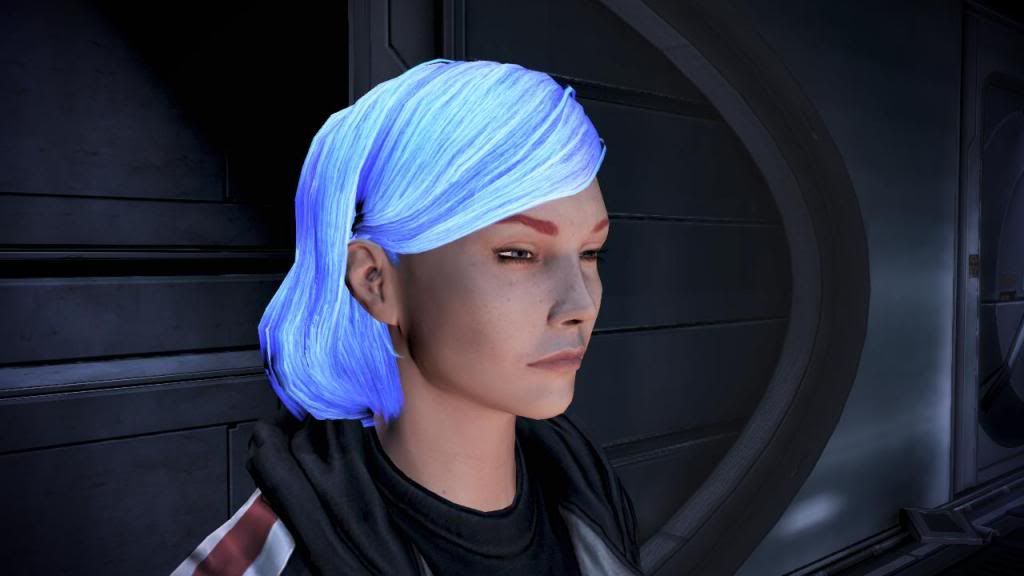
Gothic Shepard using Mohawk hair:
Creepy Statue:
Custom head with a default Femshep face... sorta:
Lips
- HED_Lips_Tint_Vector: Base lip colour.
- HED_Lips_Tint_Scalar: Adjusts base. Nonzero here if you want Vector to show itself.
- HED_Addn_Spec_Lips_Scalar: Adjust the glow on the lips. Remember this is a Spec and requires to be hit by a lightsource fairly directly, otherwise no visible glow.
Black lips with strong white spec glow:
BrowTint
- Mostly the same behaviour as with eyeshadows. Kinda like a bigger version of eyeshadow.
- HED_Brow_Tint_Vector: Base colour.
- HED_Brow_Tint_Scalar: Adjusts the base colour. A zero value here should hide the browtint completely.
- Note: eyeshadow and browtint will mix if used at the same time. Usually this will change the appearance of the eyeshadow.
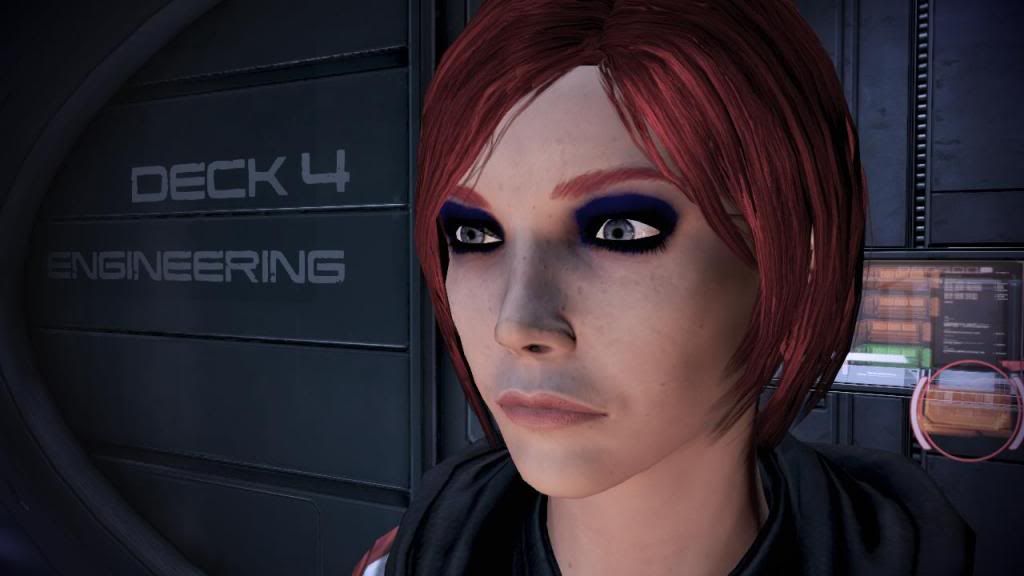
Basic browtint:
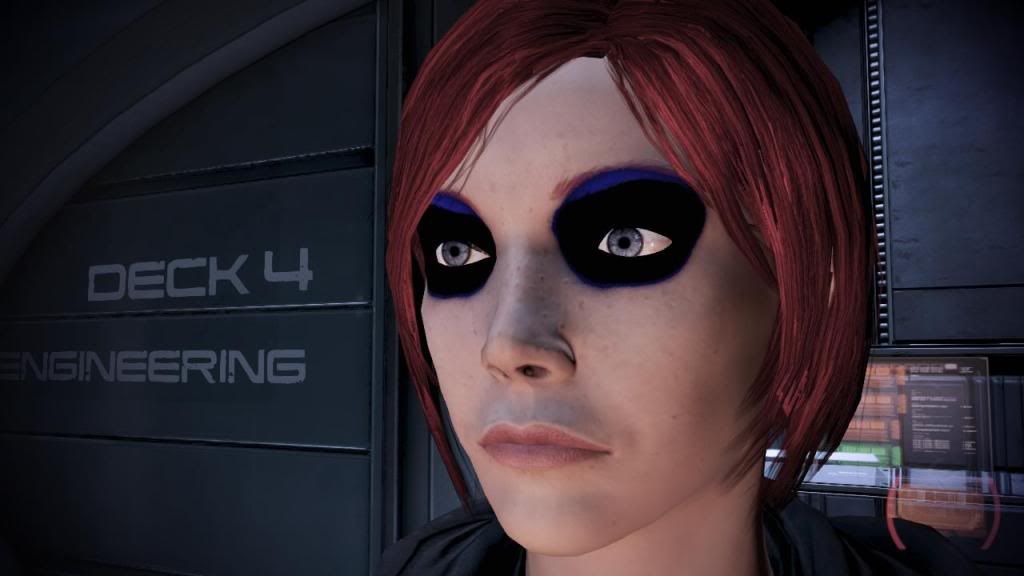
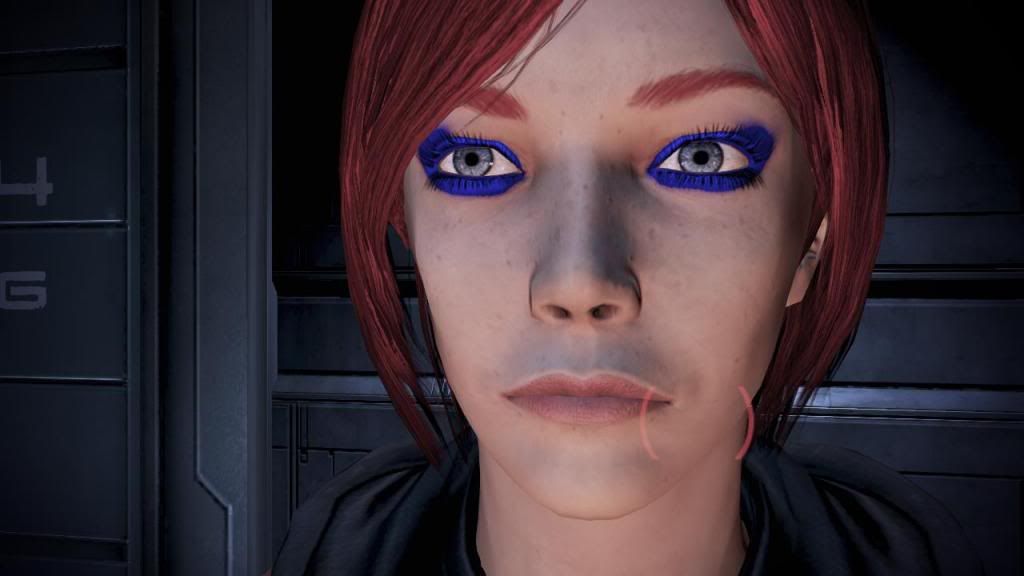
Scalar tuned high, side-effects are possible, like the darkblue here. Not sure why it does that:
Eyeshadows
- Adds colour on, and around the eyelashes in a fairly small area.
- HED_EyeShadow_Tint_Vector: Base eyeshadow colour.
- HED_EyeShadow_Tint_Scalar: Adjusts the base colour. Zero here should turn eyeshadows "off", ie not visible.
Basic darkblue eyeshadow with small scalar:
Bigger scalar, has some "pointy" side-effects too:
Hair
- HED_Hair_Colour_Vector: Base hair colour.
- Highlight1Color: Highlight1 colour on top of base.
- Highlight2Color: Highlight2 colour on top of base too. By default this is much larger than 1 and should therefore be more visible. HL 1 & 2 seem to go pretty much in the same places, which means that if you use different colours for each then they will mix according to RGB rules. Keep in mind if you see a colour you didn't intend to make.
- Highlight1Intensity: Scalar that adjusts HL1.
- Highlight2Intensity: Same as for HL 1.
- Highlight1SpecExp_Scalar: Adjusts the spec light on HL1.
- Highlight2SpecExp_Scalar: Adjusts the spec light on HL2.
Changing the SpecExp to a large value will give it more focus, like a highlighted band across the hair. A lower value will spread the light over a larger area.
- If you don't want highlights at all try putting HL1 & 2 to same as base hair colour, and turning down the HL intensities.
- Hairstyles: If you want to know how to change your hairstyle take a look at ELE08's great guide:
http://elemods.blogspot.com
Base hair red, HL1 blue, HL2 same as base red = 1+2 will mix and you end up with a little purple highlight:
Strong blue highlight, looks kinda messy without any finesse adjusting:
Warmer blonde. Using a dark orange as base colour, highlights normal blonde colours. The base will be faintly visible under the highlights giving the hair some "warmth".
Simple green base hair colour:
Blue white glow, using really large values for the base hair colour:
Even bigger values making it really glow "radioactive":
Here I've used a really darkblue base colour. Black & white highlights. Turned the HLintensity scalar down alot. Then increased the HLSpecExp scalars to really bring out the specular white line mixed with the black.
Same here. Changed the SpecExp scalar of the white down to make it spread out over a larger area, giving it the overall white shine. Looks a bit like the hair is white with darkblue highlights, although it's the opposite.
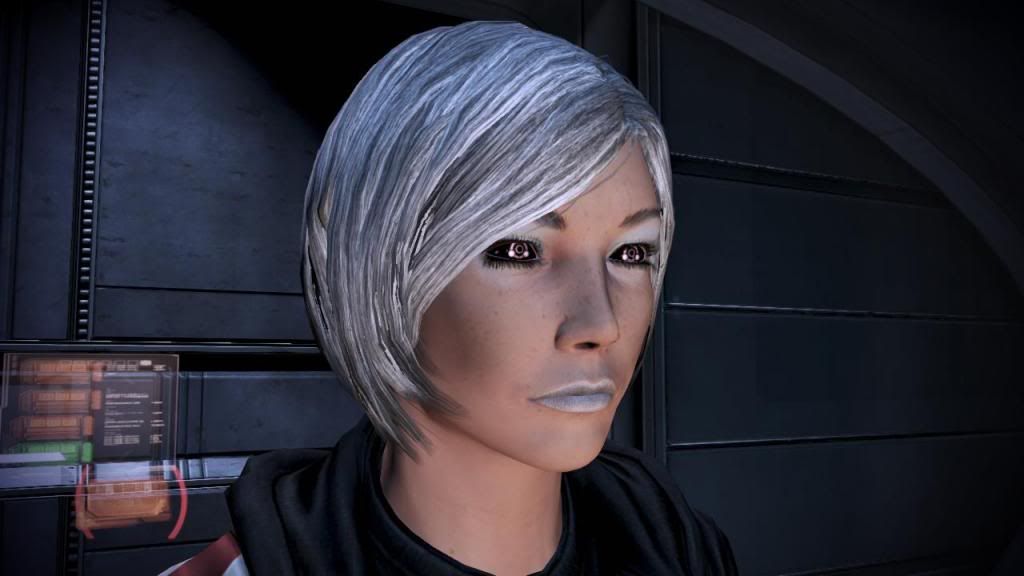
Attempting metallic colouring.
Base grey colour, HL black & white. HLintensities low, larger HL-spec to spread the white along with the black. Looks OK in normal light, but stronger white lights will bring out the base grey quite a bit ( for example when visiting the Citadel).
Skin
- SkinTone: Adjusts skin colour in the Vector parameters section.
- HED_Spec_Add_Vector: Spec light that is spread out over the face. By default this is quite faint.
- HED_SPwr_Scalar: Adjusts the HED_Spec_Add_Vector.
Might also go up over the head if using a Shepard with little to no hair.
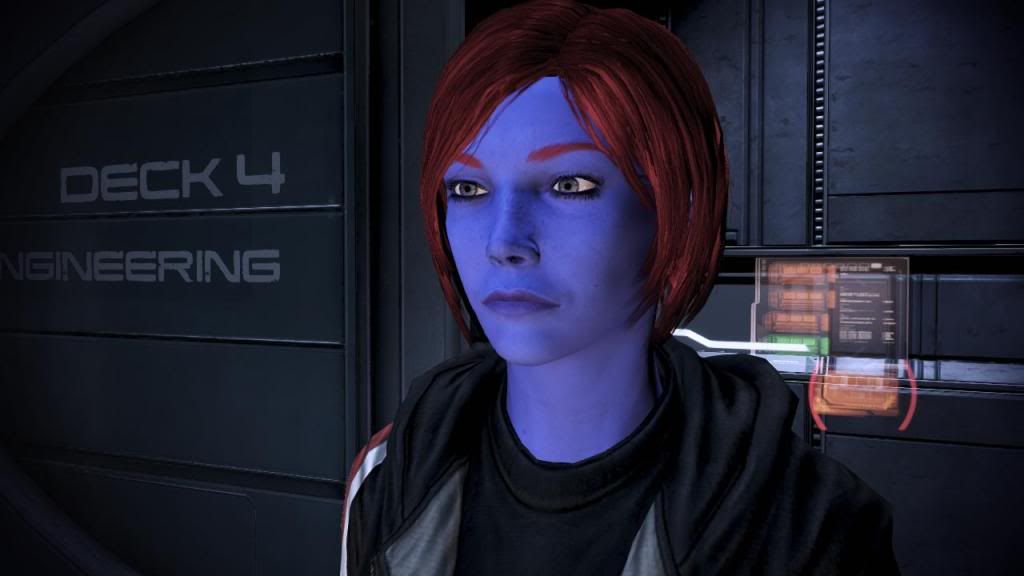
"Asari blue" skintone:
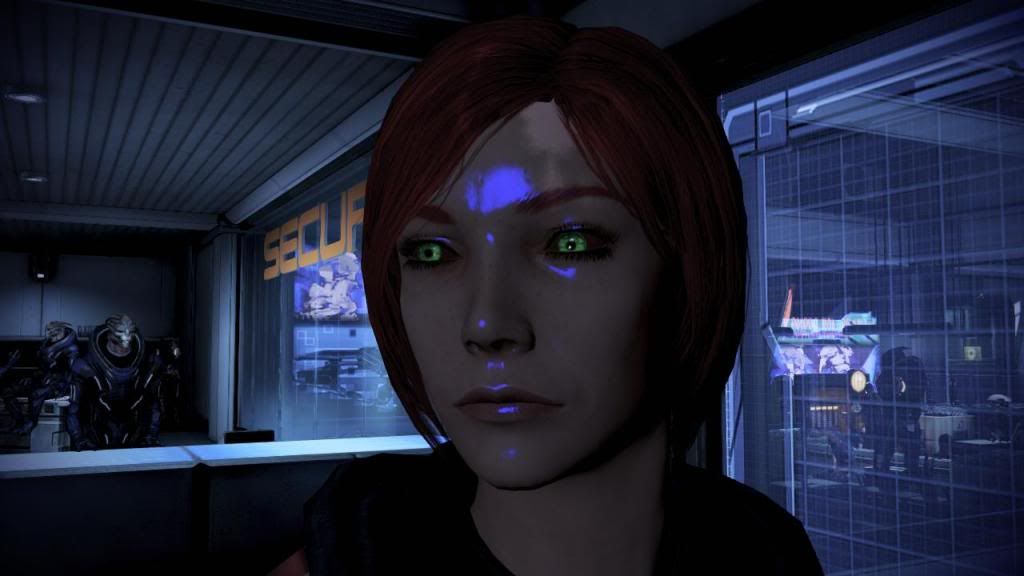
Blue spec light on face and neck with a low scalar value.
Same with a much large scalar; focusing the light into a "dot":
Eyes
- EYE_White_Colour_Vector: The white colour around the iris.
- EYE_Iris_Colour_Vector: Colour the iris itself.
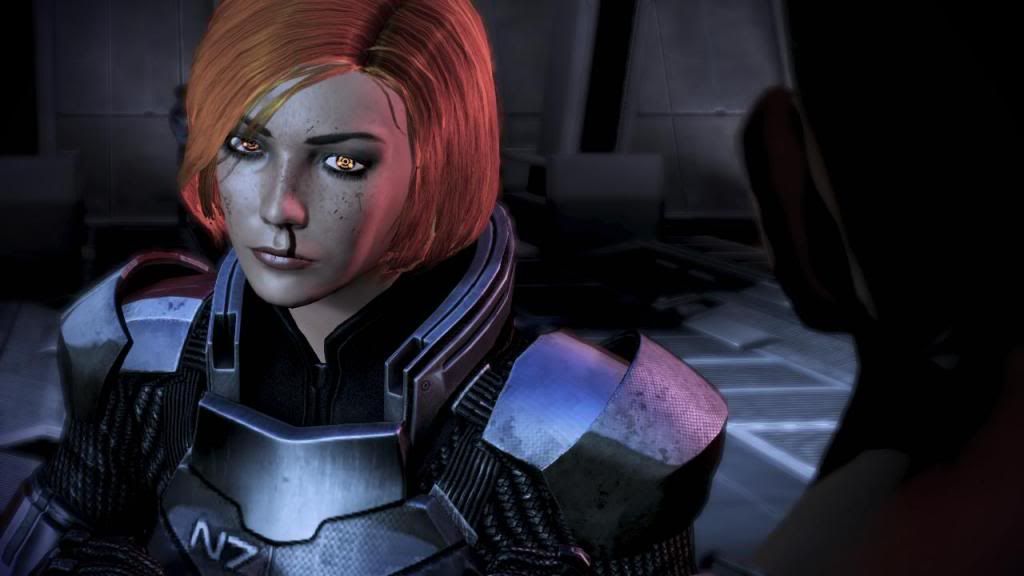
Eye_white is black and the iris is orange:
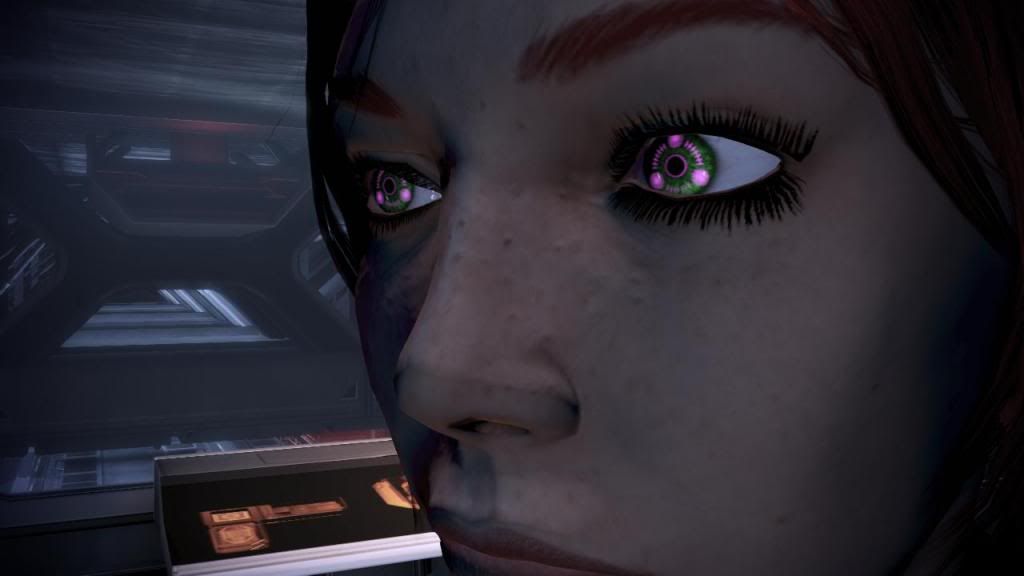
The Illusive Man eyes:
- Slightly different than normal eyes.
- EYE_Iris_Spec_Colour: Spec glow in the eye. Changes here doesn't seem to really do anything.
- EYE_Iris_Colour_Vector: Base Iris colour.
- Emis_Color: The colour of the 3 dots.
- Emis_Scalar: Adjusts the Emis_Color.
Iris set to green, Emis to purple, and a fairly large Emis_Scalar to make the purple visible, otherwise it would be pretty faint and disappear into the green.
Zaeed eyes:
- Haven't personally used these myself yet. But the options seem similar to the other eyes.
- Hopefully I'll have time to play with these at some point.
Subscribe to:
Posts (Atom)